This is the common problem most of the developers face while running the spring boot application and you will find an error in pom.xml file. Generally this issue occurs when your host address is not authorized or you are not the right admin to access the application. So, here are the five simple steps to solve the issue.
Step — 1:
Go to STS header and select Windows->Preferences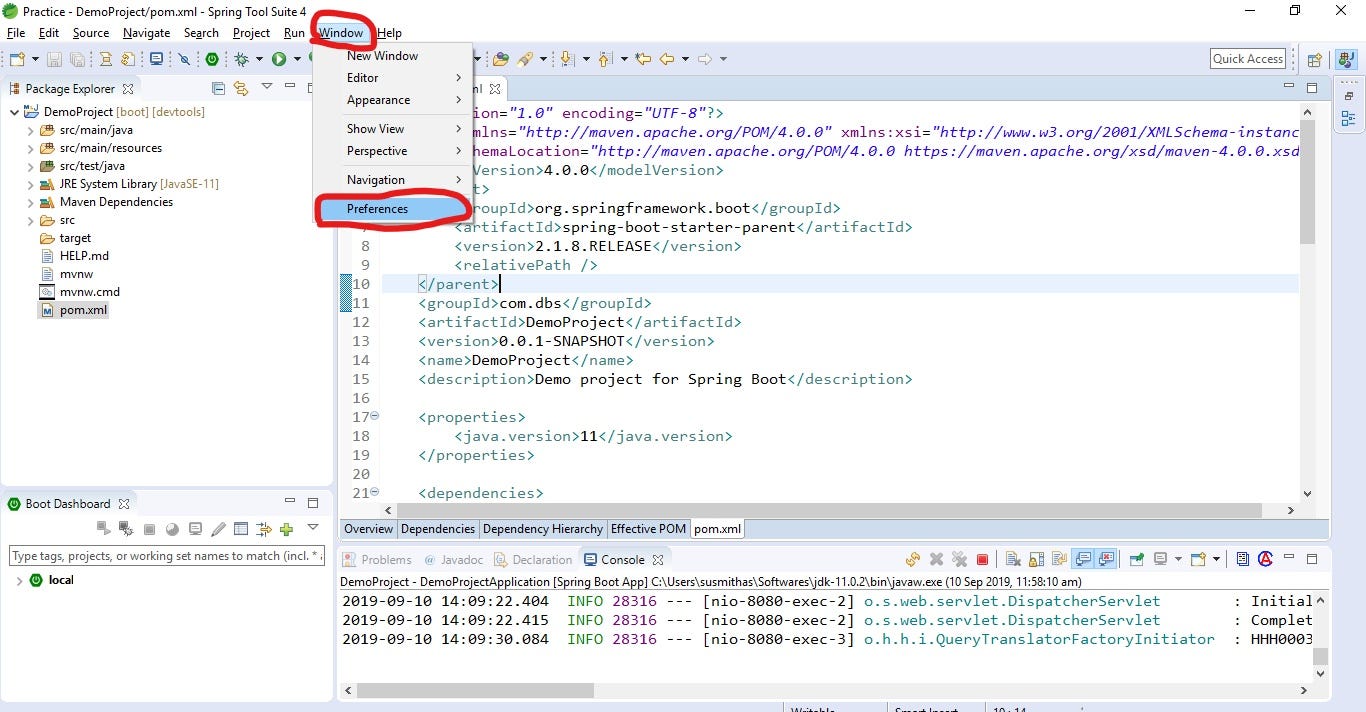
Step — 2:
Then the preferences window will pop up. There search for proxy and go to Network Settings. You will find the proxy network connections. Change the Active Provider option to Manual.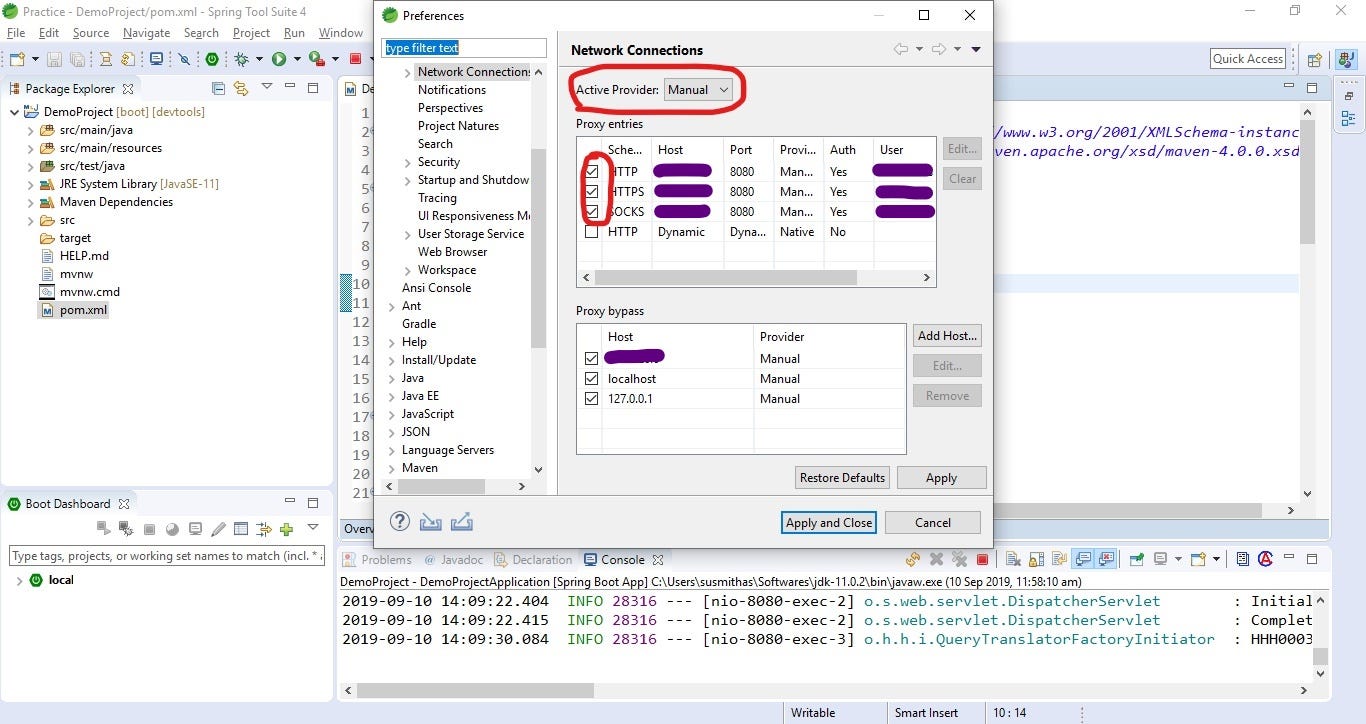
Step — 3:
Edit the first three proxy entries by entering your network host name with port:8080,your proxy username and password. If you don’t know your host address contact your admin.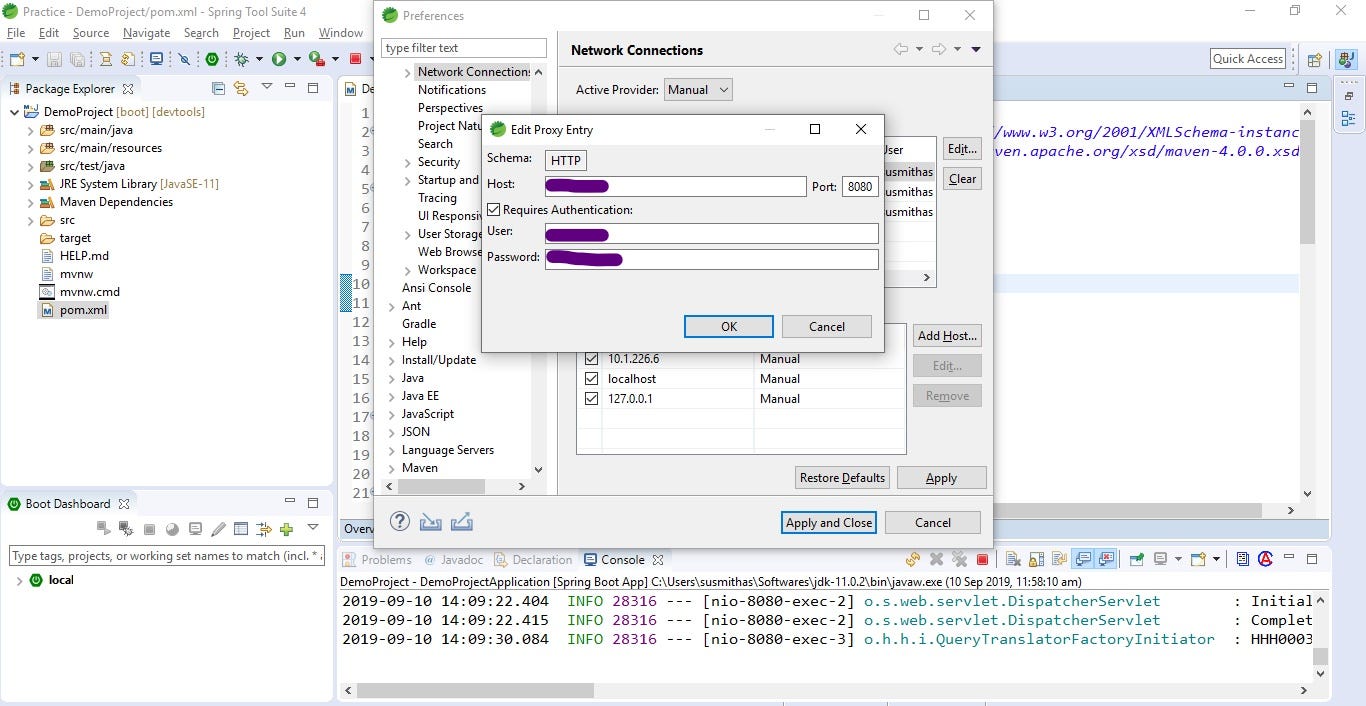
In the proxy bypass section Add Host with the host name you provided provided in proxy entries section above. Now click on Apply and Close.
Step — 4:
Make sure you have a settings.xml file in C:/Users/<your-username>/.m2/
Note: .m2 is the hidden folder
If not create a settings.xml file with the following content:
Step — 5:
Now update the maven project. Right click on the project and got to Maven → Update project
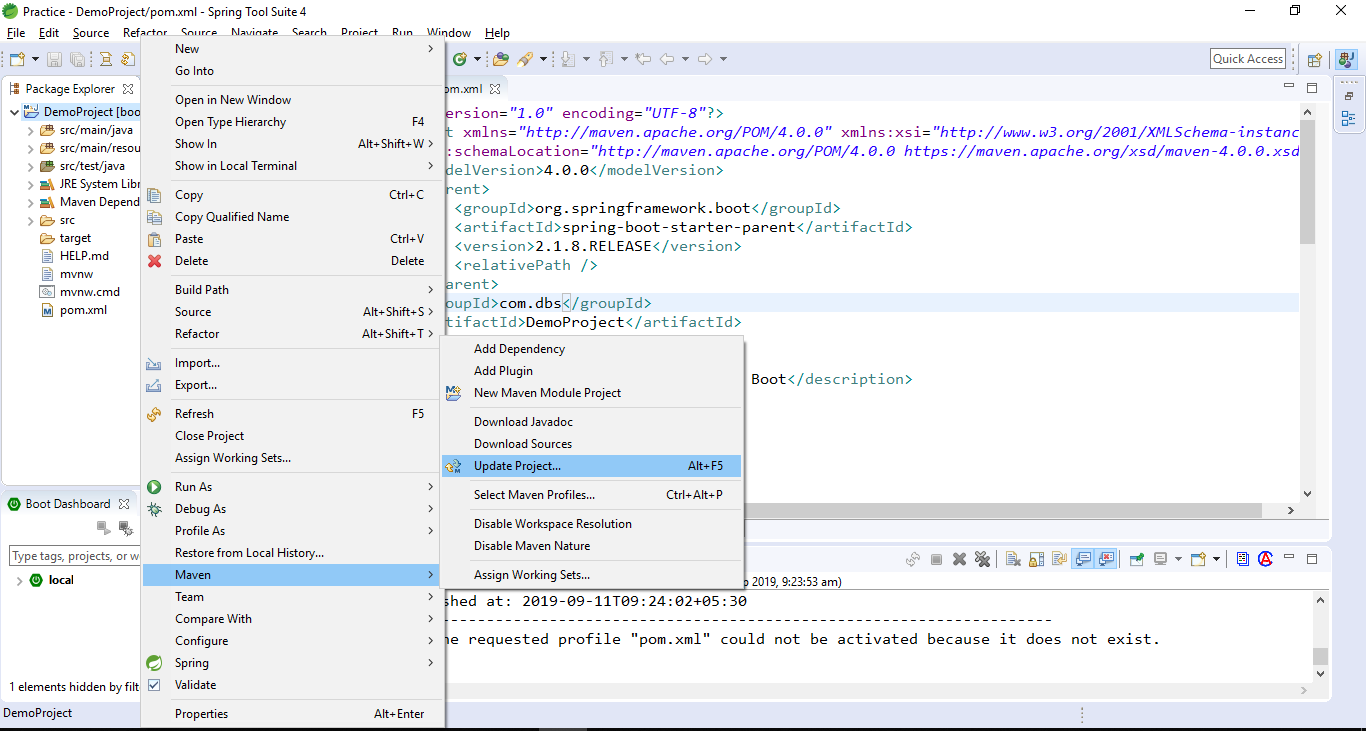
Now clean the maven project and install it.
- Right click on project folder -> Run As -> Maven clean
- Right click on project folder -> Run As -> Maven install
Thats all..!!!
Now you are good to go and can run your spring boot applications.
Happy Coding 😊
Susmitha Sanikommu 👩


No comments:
Post a Comment